How to Process Google Analytics 4 Data using Google BigQuery
Google Analytics 4 (GA4) is a powerful tool that provides valuable insights into user behaviour on your website. By tracking user interactions and events, GA4 can help you understand how visitors interact with your website and identify areas for improvement. However, analyzing GA4 data can be challenging, especially for large websites with a high traffic volume. In this article, we'll explore how to process GA4 data using Google BigQuery, a powerful data analytics tool that can help you extract valuable insights from your GA4 data. We'll cover how to set up a BigQuery account, create a dataset, and import your GA4 data into BigQuery. Make sure a Google Analytics 4 property already configured or visit this link to set it up.
Create a Google Cloud Project
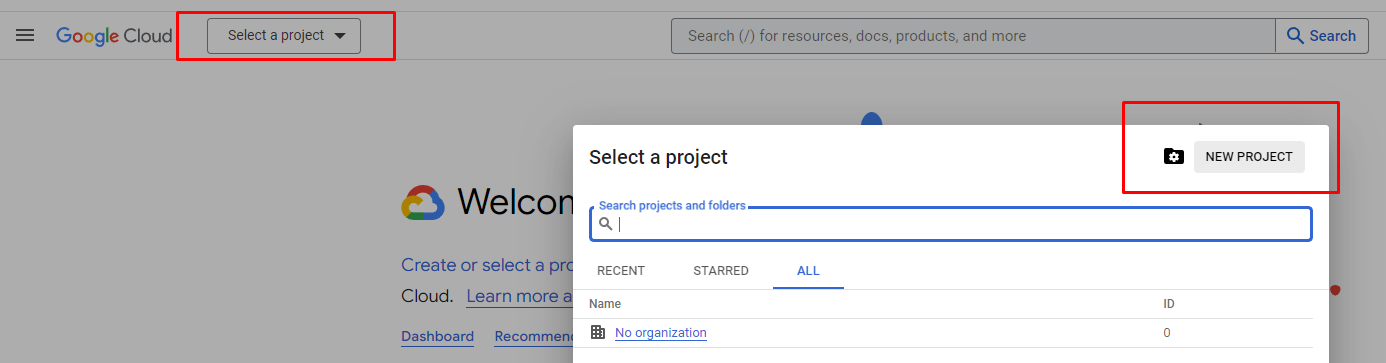
- Visit https://console.cloud.google.com/, click the project dropdown on the page header then New Project
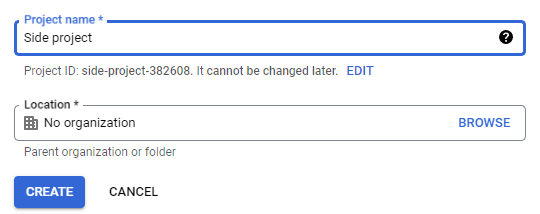
- Set the project name then click Create
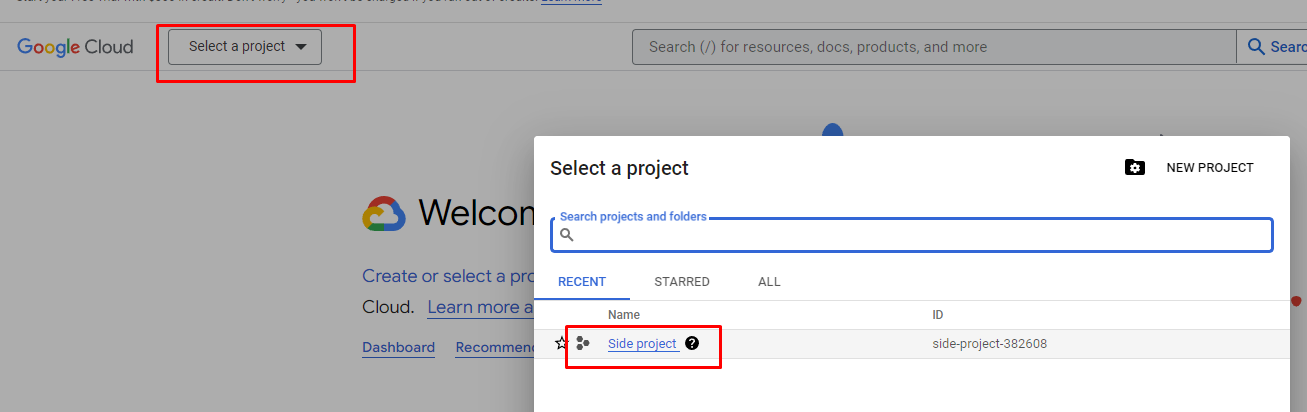
- When the project is created, let’s start to manage it by selecting it first from the project dropdown
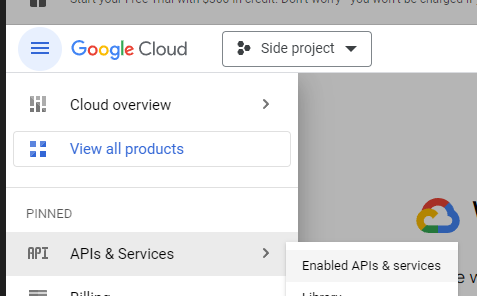
- From the sidebar menu, go to APIs & Services → Enabled APIs & services
- Click ENABLE APIS AND SERVICES

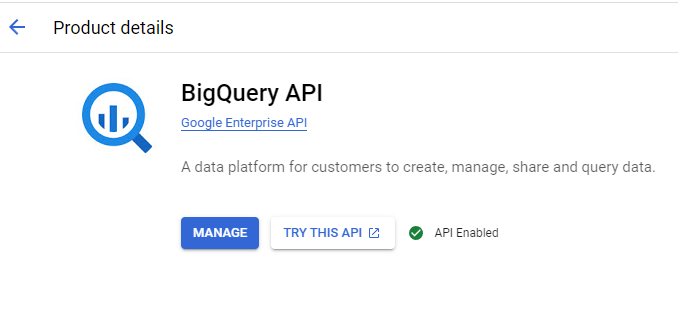
- From the API Library page, search BigQuery and make sure BigQuery API is enabled
Create A Billing Account for The Project
When exporting data from Google Analytics to BigQuery, we can do streaming export, in which the data will be exported whenever a new event is saved in Google Analytics. But, to enable streaming export, let’s create a billing account in our Google Cloud project.
- From the Google Cloud sidebar, go to the Billing menu

- Click Link a Billing Account, then fill out the form based on your personal information
- When billing is created successfully, refresh the page and go to Billing → Overview
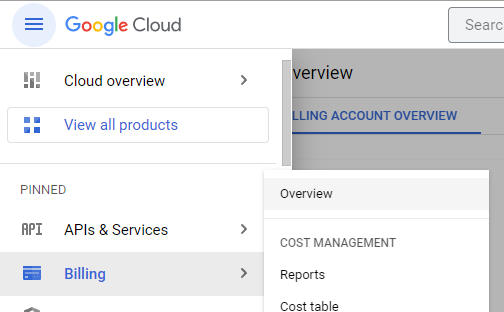
- If you see the overview of your project billing, then you can continue the link Google Analytics to BigQuery

Connect Google Analytics to BigQuery
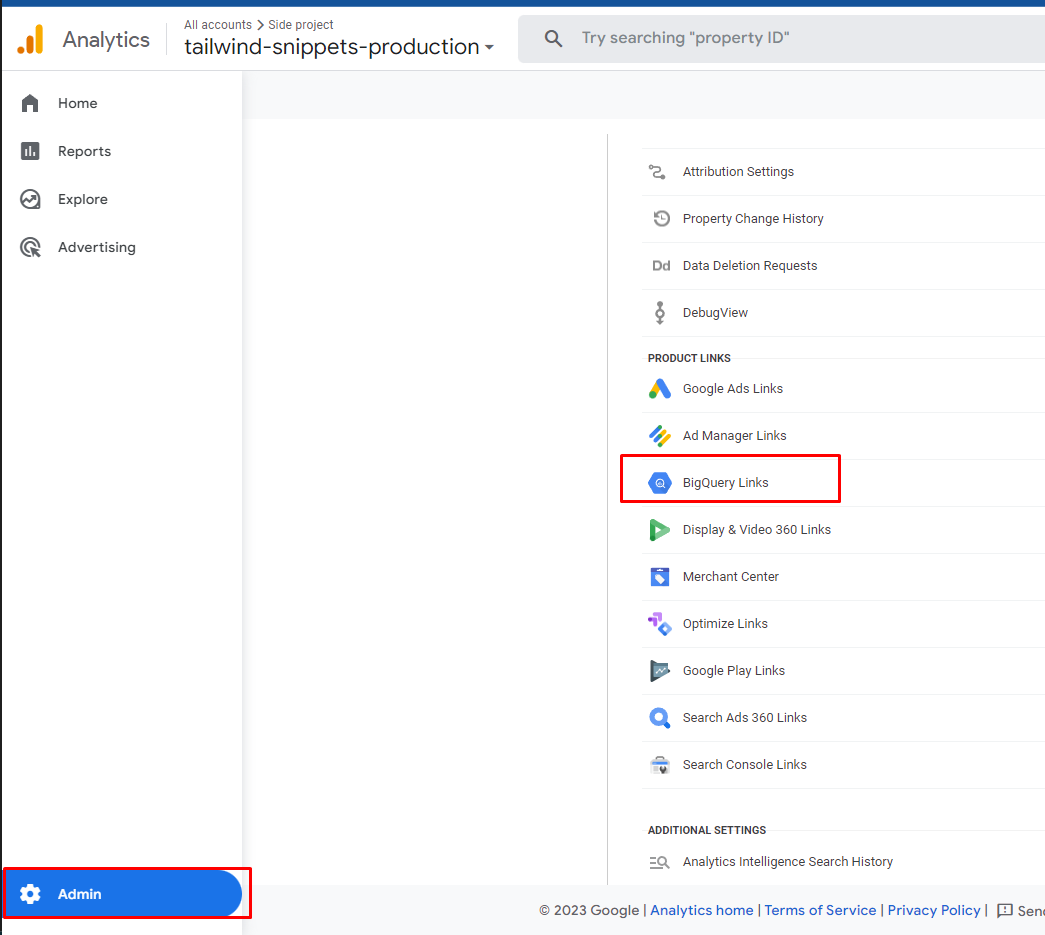
- Open the Google Analytics dashboard and go to Admin → BigQuery Links
- Create a new link and choose the project we created earlier
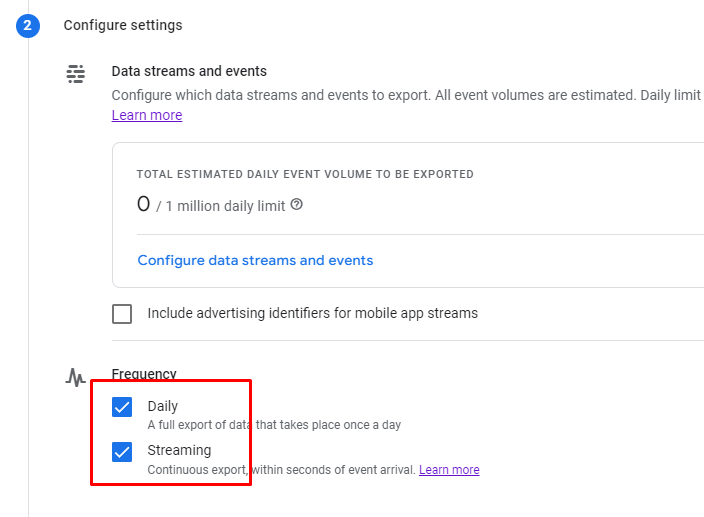
- Enable Daily and Streaming frequency. I use streaming data to quickly check if the analytics is working well because it records data in real-time, then use the daily data to analyze all historical data.
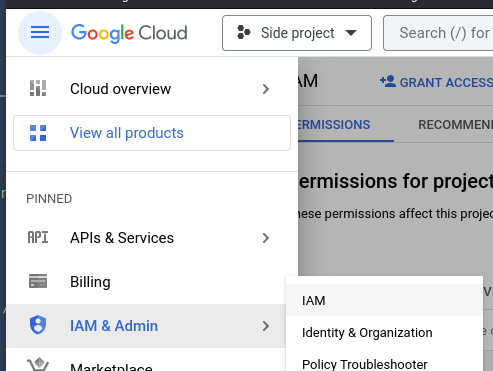
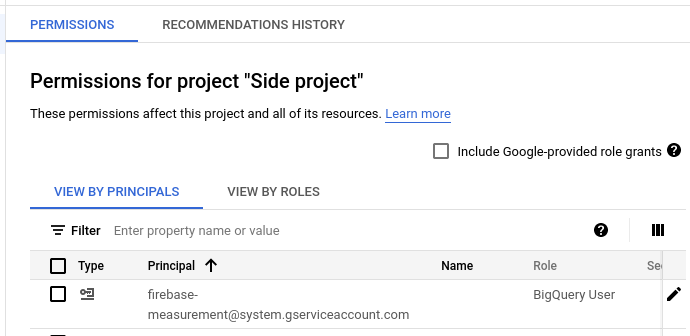
- From the Google Cloud Console, open IAM & Admin → IAM page and make sure [email protected] is granted permission as BigQuery User
- Visit your website to trigger the analytics events, then open our BigQuery project from https://console.cloud.google.com/bigquery and make sure the analytics data is being collected. If no data is collected yet, it might take one day or more for the data to be available.
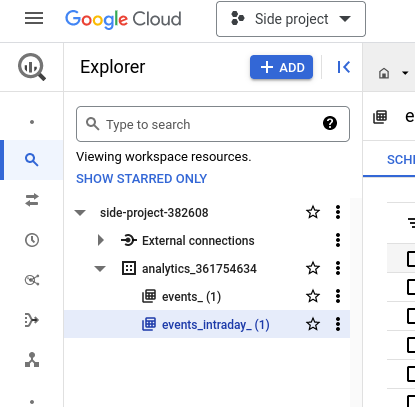
Congratulations! Now we have more flexibility to process the analytics data using BigQuery.